


I first looked at ID.me Authenticator as the kind of tool people install once and then hope they rarely need to think about. Its job is focused: it adds a second verification step when a compatible account asks for one. That makes it a productivity app rather than a general password manager, social app, or family organizer. In my experience, that narrow purpose is its biggest strength, especially in a household where several people use the same phone at different times and need a clear boundary between their accounts.
The app is free, developed by ID.me, and aimed at Everyone. It has been available since December 11, 2018, and its current version is 1.12.0-2025082916 for devices running Android 6.0 or later. Those details matter in a practical way: it is not limited to a recent flagship phone, and the absence of a purchase decision makes it easy to consider as an extra security layer. Still, free does not mean effortless. The real question is whether a simple authenticator fits the way you and the other people in your home manage accounts.
How ID.me Authenticator works in a shared household
Imagine a household tablet or phone that sits in a common area. One person needs to sign in to an account, while another person occasionally uses the same device for their own work or services. A traditional text-message code may arrive on one person’s phone, creating an interruption and making the login process depend on whoever happens to be nearby. An authenticator app changes that routine by keeping the second-step process inside the device instead of making every sign-in depend on an incoming message.
That does not turn the phone into a shared security locker. I would not treat one installation as a place where every member of a family should casually add their accounts. The app is better understood as a personal security tool that can live on a shared device only when everyone agrees about who can open the phone and who is responsible for the accounts registered there. The phone’s own lock is therefore part of the arrangement, even though it is separate from the authenticator itself.
A realistic example is a couple sharing a spare Android phone kept for occasional travel or household administration. One person may use it for a work-related sign-in, while the other uses it for an ID.me-connected service. The arrangement can work if each person knows which account belongs to them and neither assumes that the other person will maintain the setup. If the device is passed around without a clear agreement, the convenience quickly becomes confusion: someone may approve the wrong request, remove something they do not recognize, or be unable to help when the account owner is away.
This is where the app’s focused design feels useful. It does not try to become a dashboard for household coordination, and I would not want it to. There are no reasons to expect family profiles, parental controls, shared reminders, or a central view of everyone’s account activity. Its value is more modest and more practical: it gives an individual a dedicated place for an additional sign-in check.
Keep the device boundary clear before installing
Before setting it up, I would decide whether the phone is actually personal or genuinely shared. On a personal phone, the answer is simple: the owner controls access, updates the operating system, and knows which accounts are connected. On a shared device, the household should agree on a few basics first. Who can unlock it? Who will be present during account enrollment? What happens if the phone is lost, replaced, or reset? These are not special features of the app; they are the practical responsibilities that come with putting authentication on a device used by more than one person.
I also recommend avoiding casual installation on a child’s phone merely because the app is marked Everyone. An age rating describes suitability of the software, not the maturity needed to manage a sign-in credential. A young user may be able to open the app, but that does not mean they should be responsible for an adult’s account verification. For a teenager’s own account, the decision depends on the account owner’s rules and the family’s ability to protect the device. For an adult’s sensitive account, I would keep the authenticator with the adult rather than treating it as a household utility.
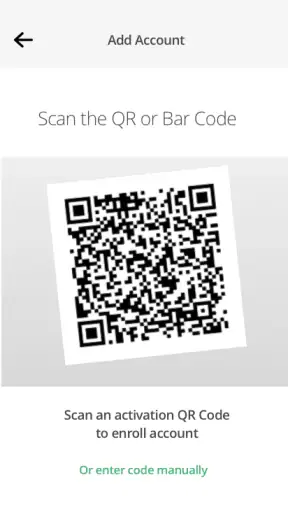
The initial setup deserves more attention than the short store summary suggests. When an online service asks you to connect an authenticator, follow that service’s enrollment instructions carefully and check that the account name or identifier shown during setup is the one you intended. On a shared phone, pause before confirming anything. A hurried tap can associate the wrong account with the device, and the app cannot solve a mistake caused by choosing the wrong setup screen.
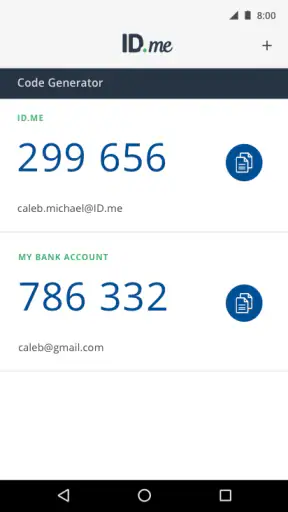
I would also complete the entire sign-in test while the account owner is present. Do not assume that seeing the app installed means the account is ready. Start a normal login, enter the generated verification information as requested by the service, and make sure the account owner understands the process. This small rehearsal is one of the most useful steps for a household because it exposes confusion before the person needs access urgently.
What coordination looks like in practice
The best shared-device arrangement uses simple verbal coordination rather than pretending the app can coordinate people for you. If two adults use the same phone, each should say when they are adding an account and avoid changing the setup while the other person is in the middle of a login. If the phone is being handed to someone else, the account owner should finish their sign-in first and close the app. That routine is not glamorous, but it prevents the most common household problem: one person assumes the other understands a screen that was never explained.
For a family managing several phones, I would usually prefer one person’s authenticator to stay on that person’s own device. A shared phone is a reasonable fallback for a spare device, an occasional-use account, or a household member who genuinely needs access to the same physical phone. It is less attractive when several people have important accounts and nobody has a written plan for recovery. The more accounts you add, the more valuable a clear ownership record becomes.
There is also a privacy boundary worth remembering. Anyone who can unlock a shared phone may be able to reach the authenticator and see account-related information displayed by it. Even if the app does not reveal a password, the presence of an account or its identifying label can be sensitive. I would use the phone’s strongest practical screen lock and avoid leaving the device unattended in an unlocked state. That advice applies especially to a device kept in a common room, where “shared” can accidentally mean “available to anyone.”
Another useful habit is to separate setup from troubleshooting. If a login fails, do not immediately delete and recreate the account entry while guessing. First check that the correct account is being used, that the service is asking for the authenticator step, and that the device’s displayed information is being entered in the expected place. Repeatedly changing the setup can make it harder to tell whether the problem came from the account, the enrollment process, or the device. I prefer a slow, documented correction over several rushed attempts.
Where the app fits beside other verification methods
Compared with text-message codes, an authenticator can make a household less dependent on a particular phone number and less vulnerable to the everyday inconvenience of waiting for a message. That is especially helpful when the person who owns the number is not home. On the other hand, a text message may feel more familiar to a family that rarely uses account-security tools, and it does not require learning a new app. The better choice depends on the service, the account owner, and how reliably the household can keep the authenticator device available.
Compared with a password manager that includes authentication features, ID.me Authenticator is much narrower. A password manager can be the better choice for someone who wants one place for passwords, notes, and sign-in organization. I would choose the ID.me app when I want a dedicated, uncomplicated verification tool and do not need those broader functions. The trade-off is obvious: fewer moving parts can be easier to understand, but the app is not a replacement for a complete credential-management system.
Hardware security keys are another alternative for people who want a physical sign-in device. They can provide a strong boundary because the key is separate from the phone, but they introduce another object to carry and protect. ID.me Authenticator is more convenient for someone who already keeps the phone nearby. In a household, a physical key may be easier to assign to one person, while a shared phone may be easier to misplace, borrow, or leave unlocked. Neither option removes the need for recovery planning.
That comparison leads to an important limitation: the app is not a universal answer for every account or every emergency. A service must support the relevant authenticator method, and the account owner must follow that service’s setup process. If you travel often, replace phones regularly, or depend on a shared device that is not always charged or available, you should think about how you will sign in when that device cannot be reached. The app can improve the normal login routine without eliminating the need to understand the account’s own recovery options.
Age, trust, and responsibility
The Everyone rating makes the app approachable from a content perspective, but household suitability still depends on trust. I would be comfortable recommending it to an adult who understands that the verification step is private and who can keep control of their phone. For a younger user, I would explain what the app is protecting before allowing them to manage it. The lesson should be simple: never read a verification code aloud, never approve a request just because someone asks, and stop if the account name or login situation looks unfamiliar.
That last point is particularly important when several people share a device. A child may think an adult’s request is automatically safe, while an adult may assume a child understands why a code appeared. The app itself cannot judge the relationship between the person holding the phone and the person attempting to sign in. Household trust has to come from clear expectations and supervision appropriate to the user’s age.
I would also avoid using a shared installation as a shortcut around account ownership. If an account belongs to one adult, that adult should remain the person who knows how it was enrolled and how access can be restored. Giving another family member temporary access to the phone may be practical, but it should not make the second person the unofficial administrator. This distinction matters when a relationship changes, a device is sold, or an account needs urgent attention.
The app’s free price is helpful for households that want to add verification without another subscription, and its broad device compatibility may make it workable on an older Android phone. Its audience is also substantial: it has passed five million installs, with an average rating of three and a half from roughly seventy-three thousand ratings and eleven thousand reviews. I see those figures as evidence that the app is established enough to be familiar, not as a guarantee that every household will find setup effortless.
Small habits that make the experience safer
My first practical tip is to label responsibility outside the app, not by exposing sensitive details. A household can keep a private note saying which adult owns the account and which device holds the authenticator, without writing down passwords or verification information. This is useful when someone else has to help locate the phone, but it avoids turning a public household note into a list of credentials.
My second tip is to treat a phone change as a planned task. Before wiping, selling, or abandoning the device, the account owner should review the services connected to it and follow each service’s process for moving or replacing the verification method. Do not rely on the assumption that reinstalling the app will recreate the previous setup. Authentication enrollment belongs to the account-service relationship, so the service’s instructions matter as much as the app installation.
My third tip is to test after any major household change. If the phone has been repaired, reset, reassigned, or given to another family member, perform a controlled sign-in with the account owner present. This catches problems while there is still time to use another approved method. It also confirms that everyone understands who should handle the next verification request.
A fourth useful insight is that convenience and separation pull in opposite directions. A shared phone reduces the number of devices a household must maintain, but it also concentrates several people’s access into one physical object. Keeping separate personal devices creates more independence and clearer privacy, while using one spare phone can be perfectly sensible for an occasional account. I would make that choice based on the importance of the accounts, not simply on whether sharing feels easier today.
My household verdict
I recommend ID.me Authenticator to an adult who wants a focused, free two-step verification app and is willing to take responsibility for the phone where it is installed. It is especially reasonable for someone already using ID.me-related services and looking for a straightforward second step rather than a full password-management suite. The current release is 1.12.0-2025082916, and the Android requirement of 6.0 or later keeps it within reach of many older devices.
For a shared household device, my recommendation is more conditional. I would use it there only when account ownership is explicit, the phone has a reliable lock, and everyone knows that the app is not a family account hub. It can support coordination, but it cannot provide profiles, family permissions, or a recovery plan. Those boundaries have to come from the people using the device.
I would skip it as the main solution if you want passwords, secure notes, cross-device credential management, or a single tool for a large collection of accounts. I would also think twice if the phone is frequently borrowed, left unlocked, or likely to be replaced without careful preparation. In those cases, a personal device, a broader password manager, or a separate hardware method may offer a cleaner boundary.
My final view is positive because the app does not try to do too much. Its usefulness comes from giving one specific security task a dedicated place on Android. Used on a personal phone, it is easy to understand; used in a household, it demands more discipline than the installation itself suggests. If you respect the difference between a shared device and a shared account, keep responsibilities clear, and rehearse the login process before an urgent moment, it can be a sensible addition to everyday account security.


